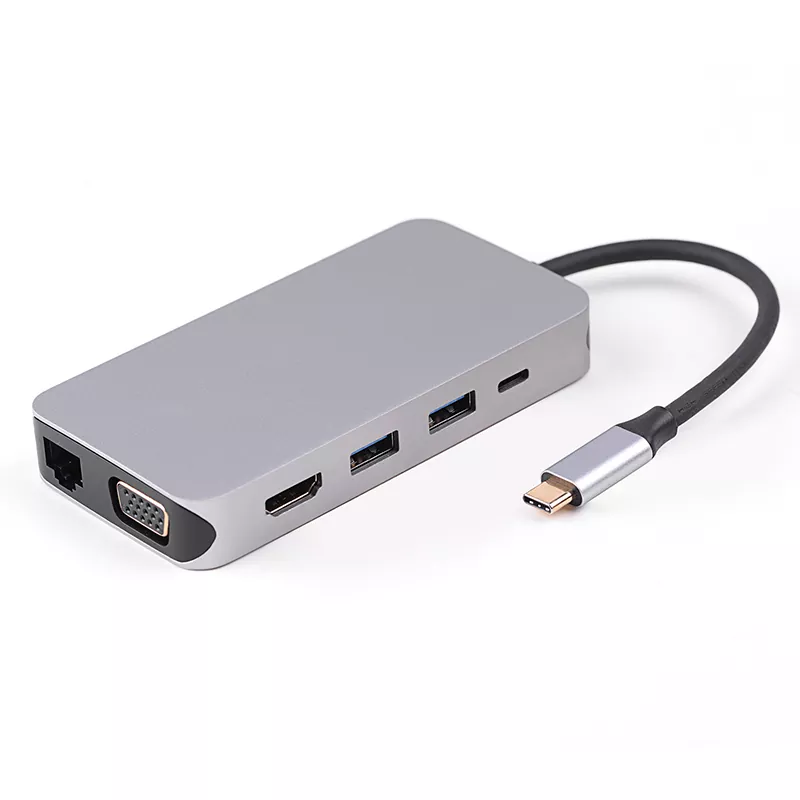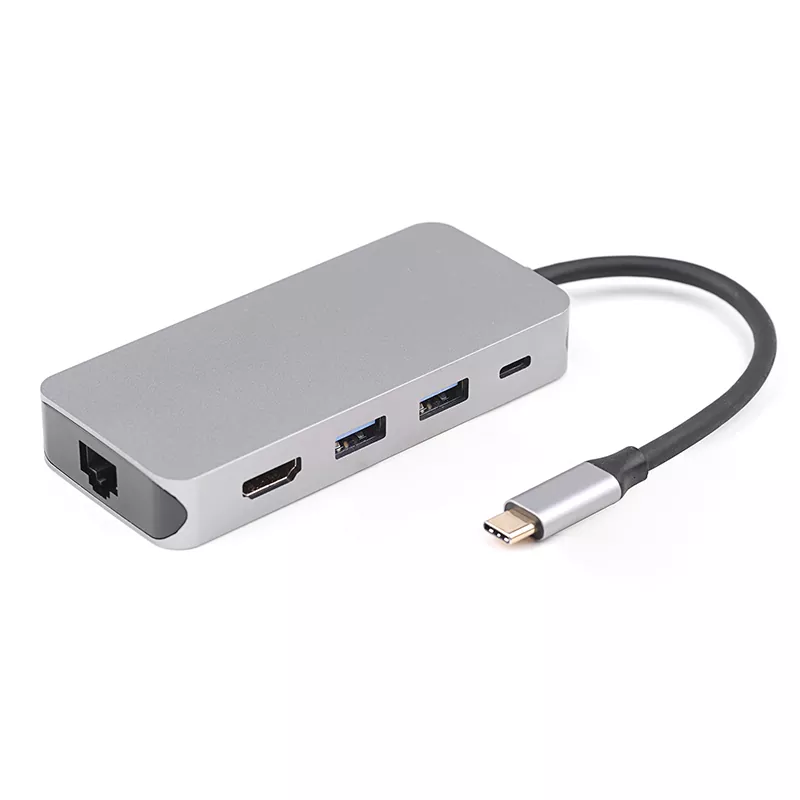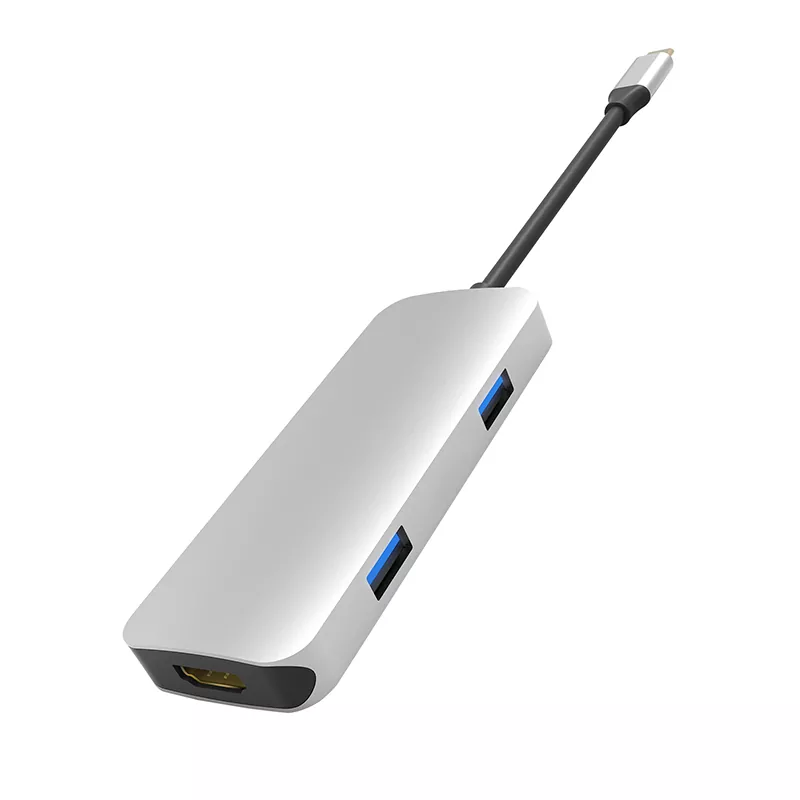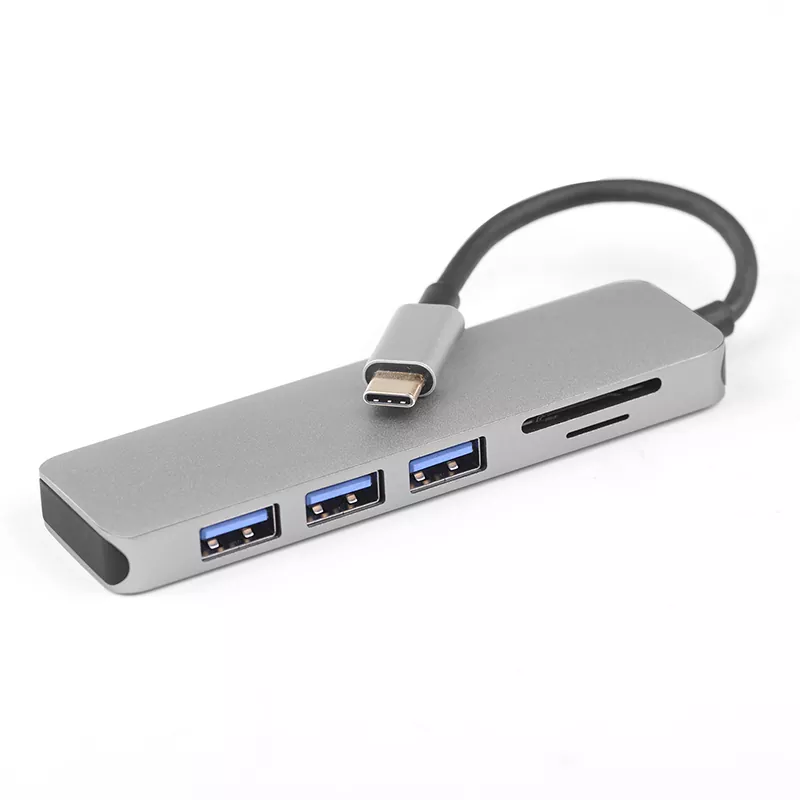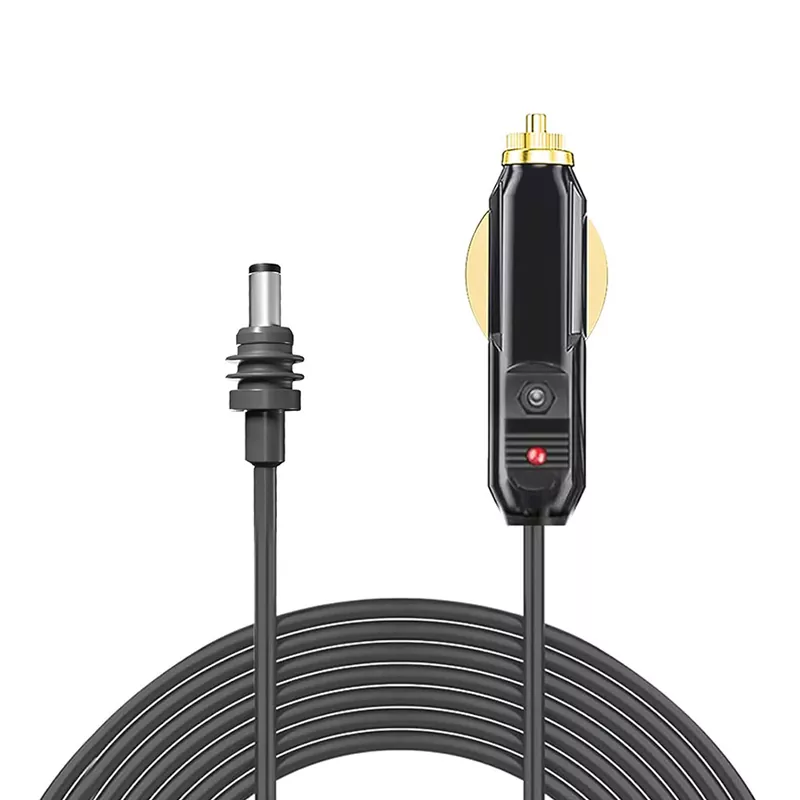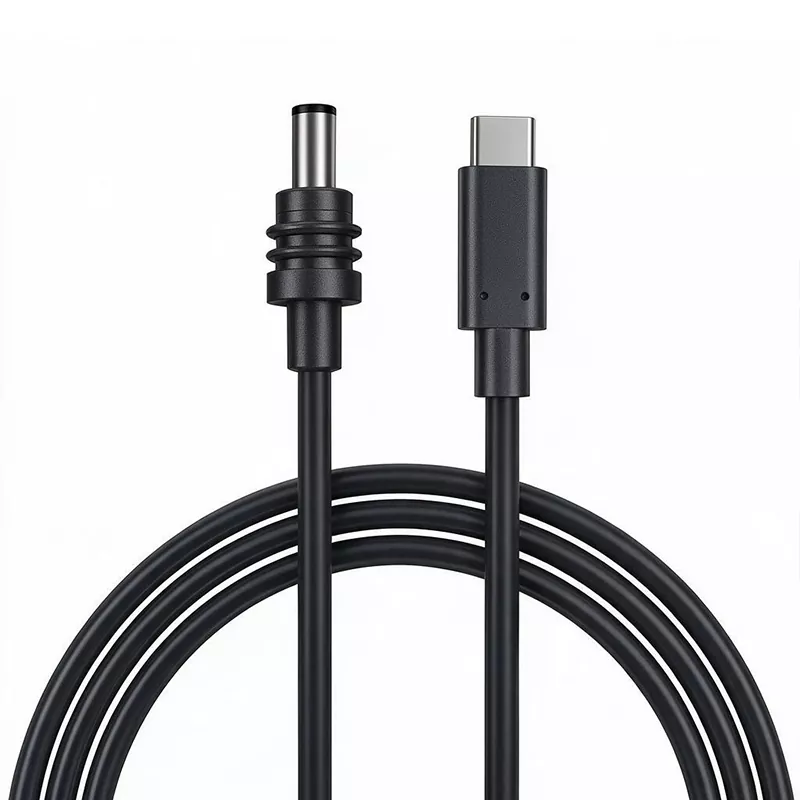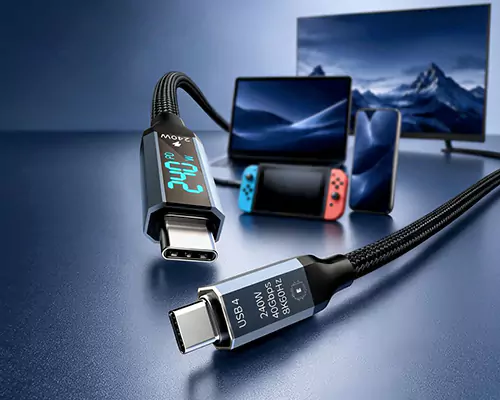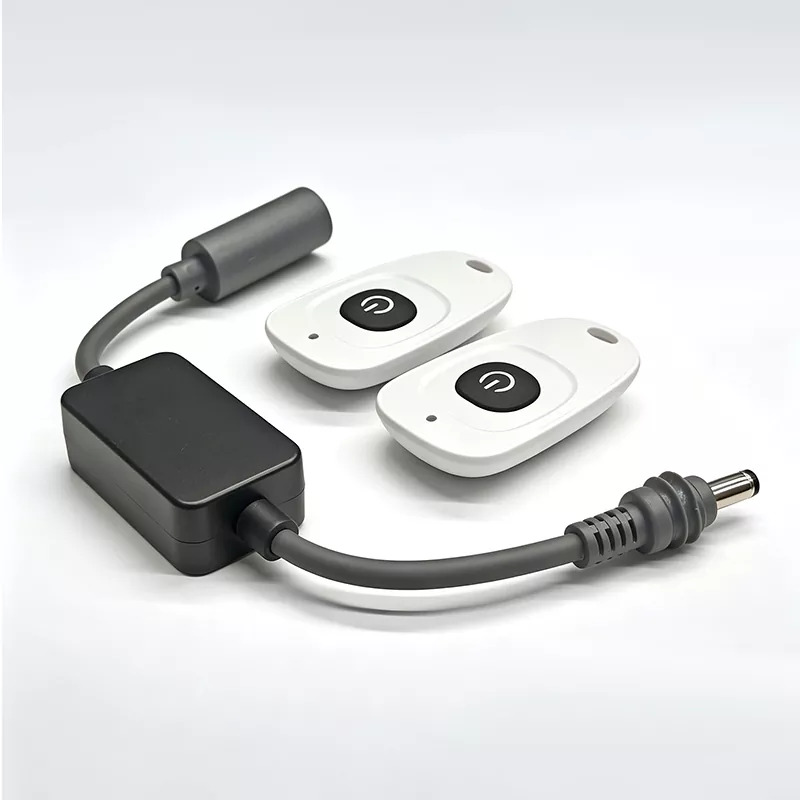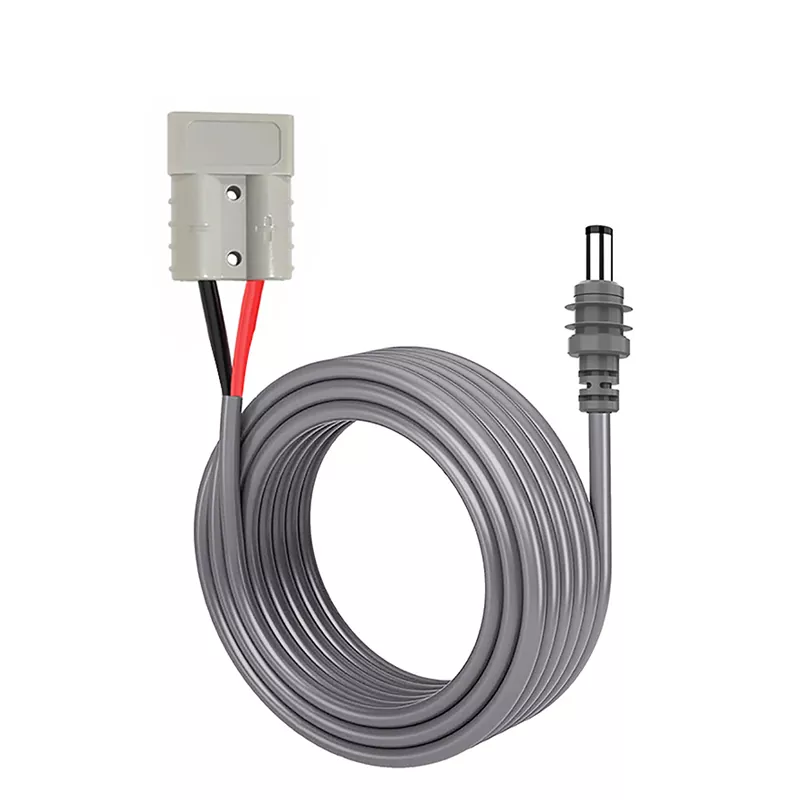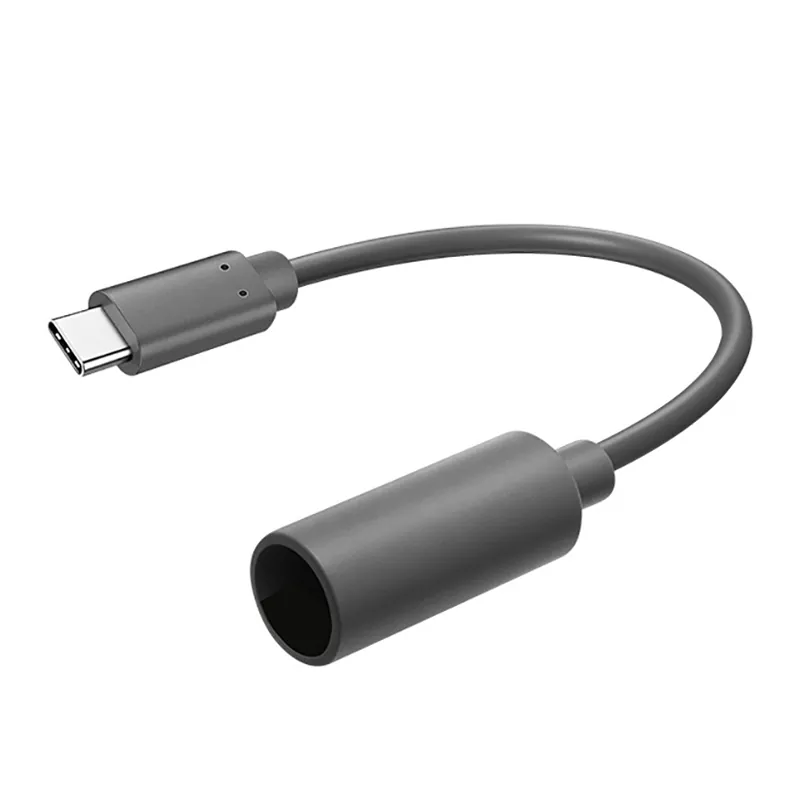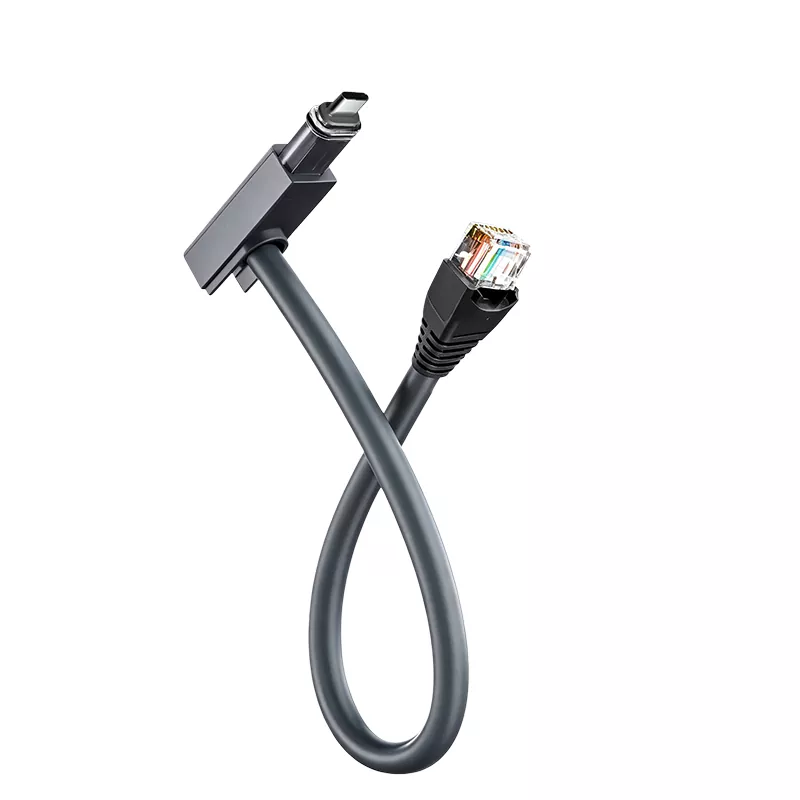
A USB-C Multi-Port Dock is a peripheral that expands the limited ports of a laptop or tablet into multiple video, data, network, audio, and power-delivery ports through a single USB-C cable. Its core value is “one-cable connection”: with one USB-C plug, users can simultaneously charge the host, connect an external monitor, access wired Ethernet, read memory cards, and connect keyboards, mice, and other peripherals—without plugging and unplugging each device separately. Docks typically use an aluminum alloy or ABS enclosure and integrate video conversion chips (Alt Mode / MST / DisplayLink), a USB hub controller, and Power Delivery negotiation circuitry to balance bandwidth, power, and compatibility.
Classified by video-output mechanism, USB-C Multi-port Docks fall into the following main categories, which directly determine multi-display feasibility and host compatibility:
USB-C Alt Mode Docks: Rely on DisplayPort signals natively output by the host’s USB-C port, with no driver installation required. Ideal for single-display or dual-display (with MST) Windows / ChromeOS users, offering the lowest latency and most stable compatibility.
MST (Multi-Stream Transport) Docks: Split one DisplayPort signal into multiple independent display streams on top of Alt Mode, enabling dual- or triple-display extension on Windows and ChromeOS. However, macOS does not support MST extended mode. When an MST dock is connected to a Mac, external monitors can only mirror the display and cannot be used as independent desktops.
DisplayLink Docks: Use a built-in DisplayLink chip and host-side driver to package video data as USB data for transmission. They are not limited by macOS’s MST restriction and can enable dual- or even quad-display independent extension on Apple Silicon Macs, at the cost of requiring driver installation and consuming some CPU resources. Plugable’s 14-in-1 dock, for example, uses a hybrid DisplayLink + MST approach to achieve quad-display output on both Mac and Windows.
Thunderbolt / USB4 Docks: Use a Thunderbolt 3/4 or USB4 host interface with up to 40 Gbps bandwidth, natively driving dual 4K/60Hz or even a single 8K display while retaining sufficient PCIe data lanes for external SSDs or 10GbE network adapters. Compared with USB4, Thunderbolt 4 has stricter certification minimums (mandatory dual 4K support and 32 Gbps PCIe bandwidth), making it suitable for workstations with clear requirements for stability and multi-display specifications.
Power Delivery (PD) is one of the key specifications of a dock and directly determines whether the host can be charged at full speed while ports are expanded. Mainstream docks provide up to 100W host power via USB PD 3.0 (after deducting the dock’s own power consumption, the power actually delivered to a laptop is typically 85–96W). Some high-end models have upgraded to PD 3.1 EPR, supporting up to 140W or even higher host charging power to meet the full-power requirements of high-performance gaming laptops or mobile workstations. Note that if the dock’s front USB-C port is also used to charge a phone or other device, the available power at the host end will be reduced accordingly.
Video bandwidth determines the maximum supported combination of resolution and refresh rate. USB-C Alt Mode is typically based on DisplayPort 1.4, and a single lane can carry 4K/120Hz or 8K/30Hz (higher with DSC). In dual-display scenarios, bandwidth must be allocated, with typical specifications being dual 4K/60Hz or a single 4K/120Hz plus a second display at a lower specification. Of the 40 Gbps total bandwidth of Thunderbolt / USB4, video shares capacity with data (USB, PCIe, network), so high-refresh multi-display docks may compromise somewhat on USB data throughput. The choice should be weighed according to the use case.
Hybrid work and dual/triple-display workstations: One cable connects a laptop to desktop monitors, keyboard, mouse, wired network, and power. Unplug and go when commuting; plug in and work when back at the desk. Dual 4K/60Hz is the current mainstream baseline for productivity docks.
macOS multi-display extension: Apple Silicon Macs (base M1/M2/M3 models) natively support only a limited number of external displays. A DisplayLink dock is required for dual- or multi-display independent extension; MST docks can only mirror on Macs.
Gaming and high-refresh scenarios: Through HDMI 2.1 or DisplayPort 1.4 output, some docks support 4K/120Hz or 1440p/144Hz in single-display mode, meeting the needs of gaming laptops connecting to high-refresh monitors.
Content creation and mobile workstations: Thunderbolt / USB4 docks can drive dual 4K displays while providing a 10–20 Gbps data lane for an external NVMe SSD, suitable for video editing, 3D rendering, and other workflows that require simultaneous high-speed storage and multi-display preview.
Commercial digital signage and meeting rooms: A dock can serve as a fixed-installation interface hub, unifying laptops, wireless presentation modules, AV equipment, and network cables into one connection to reduce desktop cable clutter.
A true one-cable desktop: Traditional USB hubs usually expand only USB-A ports, and video output requires a separate adapter. A multi-port dock integrates video, USB, network, audio, card reading, and power delivery into a single device, requiring only one USB-C cable from laptop to desktop.
Protocol awareness and power allocation: Quality docks include PD negotiation chips that dynamically allocate power among the host, the dock itself, and downstream ports, avoiding the problem of “charging slowing down after connecting the dock.” A dock rated at 100W typically delivers 85–96W to the host, with the remainder used by internal chips and downstream ports.
Flexible adaptation of multi-display mechanisms: A single dock may integrate one or more of Alt Mode, MST, and DisplayLink. Users should choose the mechanism based on the host platform (Windows / macOS) and the number of displays required, rather than simply looking at “how many HDMI ports” it has.
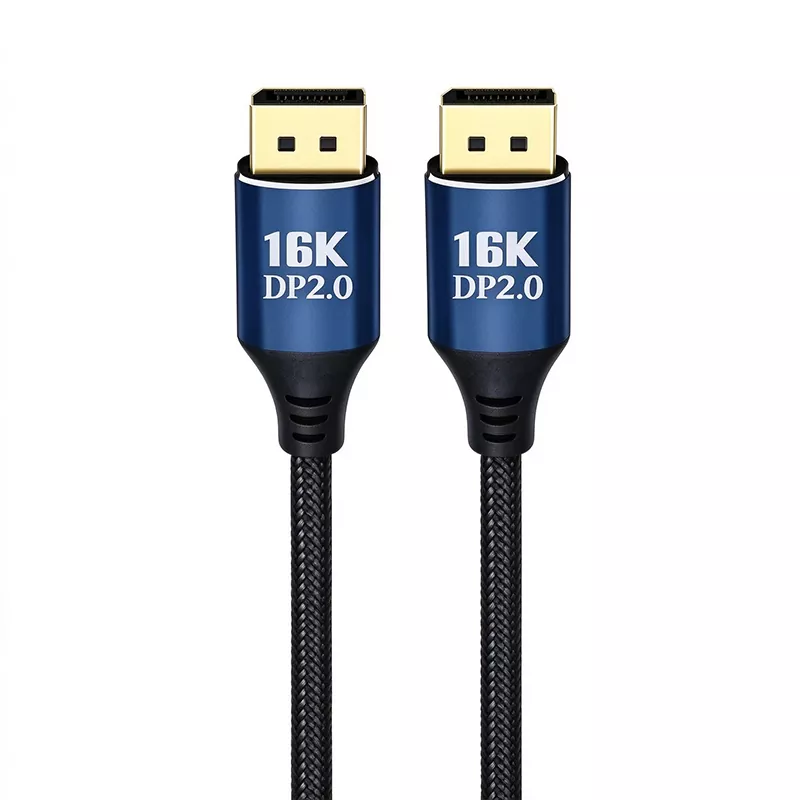
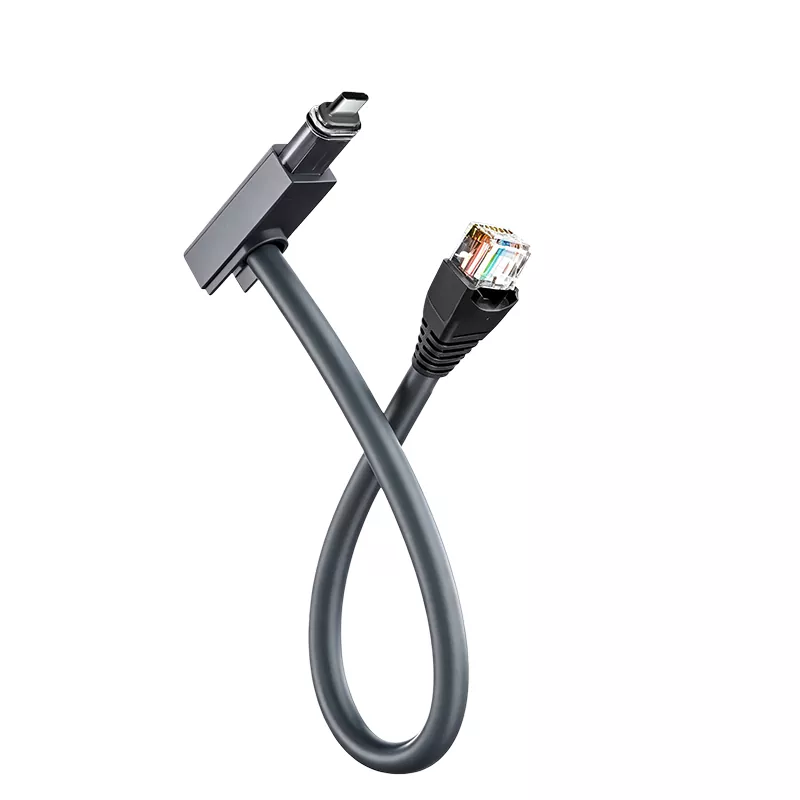
Engineering value of cabling and shielding: The integrated cable (or included cable) of a USB-C dock must carry high-speed video and PD power. AWG wire gauge, shielding structure, and the E-Marker chip directly affect stability. 24–26 AWG power conductors and multi-layer aluminum foil + braid shielding are the foundation of reliable transmission. Cables supporting more than 100W must be equipped with an E-Marker chip to correctly declare current capability to the host.
Host connection: Use the dock’s upstream USB-C cable (or included cable) to connect to the laptop/tablet’s USB-C port. Before connecting, confirm that the port supports DisplayPort Alt Mode and USB Power Delivery—not all USB-C ports provide video output and charging capability.
Display connection: Prefer the dock’s direct HDMI or DisplayPort output ports. For multi-display extension, confirm whether the host platform supports MST (Windows/ChromeOS) or whether a DisplayLink driver is required (macOS). For two or more displays, check the dock’s “dual-display specification table” to confirm whether it runs dual 4K/60Hz or at a reduced specification.
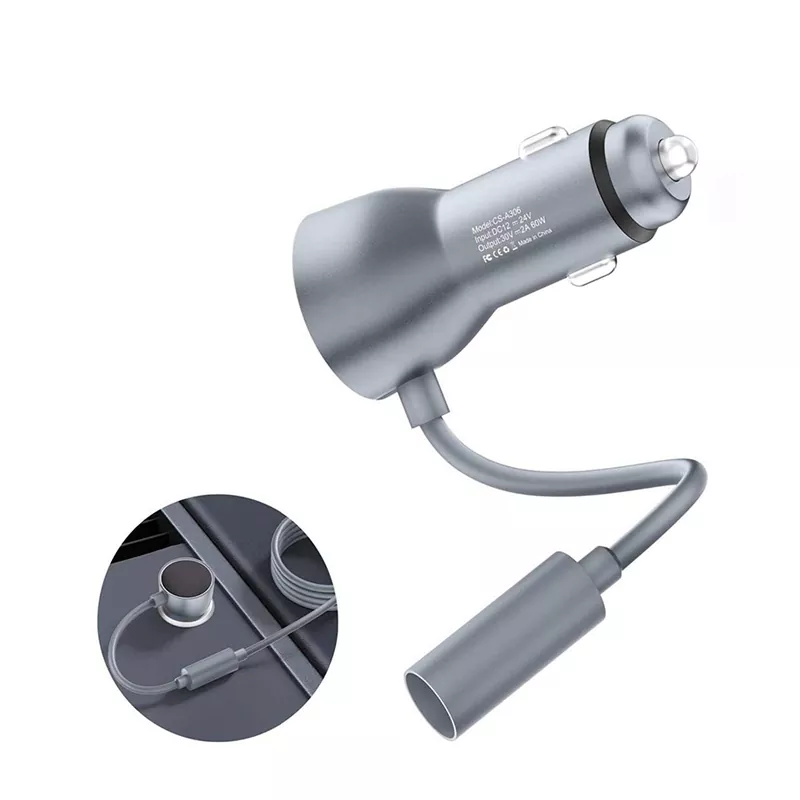
Power connection: Connect the dock’s PD power adapter to its dedicated PD input port. If the dock supports PD pass-through, the host power supply can also feed downstream devices through the dock, but the total power limit must be observed.
Peripherals and network: USB-A / USB-C data ports, Gigabit or 2.5GbE Ethernet, SD/microSD card readers, and 3.5mm audio ports are plug-and-play with no additional drivers (except DisplayLink video functionality).
Long-distance and fixed installations: If the host and dock are far apart, use an active USB-C extension cable or fiber-optic USB cable. However, ensure the extension cable supports the required bandwidth and PD power; ordinary passive extension cables are prone to speed reduction or instability in 4K/60Hz + high-power scenarios.
|
Parameter |
Typical Specification |
|
Host Interface |
USB-C (supporting DP Alt Mode + PD); Thunderbolt 3/4 or USB4 models offer higher bandwidth |
|
Video Output |
1× HDMI 2.1 / DP 1.4 up to 2× HDMI + 1× DP (depending on model) |
|
Maximum Resolution |
Single display up to 8K/60Hz (DisplayLink or TB/USB4); dual 4K/60Hz; some models support single 4K/120Hz or 1440p/144Hz |
|
Multi-Display Mechanism |
Alt Mode (native) / MST (Windows extension) / DisplayLink (driver-based cross-platform extension) |
|
Host Power Delivery |
USB PD 3.0 up to 100W (approximately 85–96W actually delivered to host); PD 3.1 EPR models up to 140W |
|
USB Data Ports |
2–6 ports, combinations including USB-C 10Gbps, USB-A 10Gbps, USB-A 5Gbps |
|
Network |
Gigabit Ethernet or 2.5GbE |
|
Card Reader |
SD / microSD (UHS-I or UHS-II, depending on model) |
|
Audio |
3.5mm headphone/microphone combo (some models) |
|
Enclosure and Cooling |
Aluminum alloy or ABS; high-power models require attention to thermal design |
|
Compatible Systems |
Windows 10/11, macOS, ChromeOS, Linux (depending on chipset and driver support) |
Data summarized from mainstream dock product specifications.
What Accessories and Packaging Methods Are Typically Available for USB-C Multi-port Docks?
Included accessories: USB-C host cable (typically 0.4–1m, must match dock bandwidth and PD power), PD power adapter (100W–140W, common with high-end models), quick start guide. DisplayLink models may include driver download instructions.
Optional accessories: USB-C extension cable (active or fiber-optic), VESA / desktop mounting bracket, Kensington lock security cable, spare PD adapter, HDMI / DP adapter cables (for legacy monitors).
Packaging methods: Retail color box (with product images and specifications), kraft paper simple box (bulk/OEM orders), anti-static bag + foam insert (to protect aluminum enclosure and ports). Packaging usually includes port protective caps and a moisture-barrier bag for sea freight or long-distance transport.
|
Standard / Certification |
Description |
|
USB-IF Certification |
Compliance with USB Type-C functionality, USB PD power delivery, and USB 3.2/USB4 specifications |
|
VESA DisplayPort Alt Mode Certification |
Video output passes VESA CTS testing to ensure DP Alt Mode interoperability |
|
DisplayLink Certification (if applicable) |
Compatibility certification for DisplayLink chipset solutions and drivers |
|
Thunderbolt Certification (if applicable) |
Intel’s strict functional and stability certification for Thunderbolt 3/4 docks |
|
CE / FCC |
European and U.S. electromagnetic compatibility (EMC) and safety requirements |
|
RoHS / REACH |
Hazardous substance restrictions and chemical compliance |
|
UL / Safety |
Safety certification for power adapters and complete units (depending on target market) |
|
ISO 9001 |
Supplier quality management system |
Certification information refers to general industry requirements.
Please provide the following information and contact sales06@tldcable.com:
1. Product Specifications: Required port count and combination (number and type of video ports, USB-C/USB-A speeds, Ethernet speed, card reader specifications); multi-display mechanism requirements (Alt Mode / MST / DisplayLink / Thunderbolt); host power delivery requirement (100W / 140W); enclosure material and thermal preference.
2. Host Platform: Primarily for Windows, macOS, or a mixed environment? Is a DisplayLink solution required for macOS multi-display?
3. Quantity: Sample order or bulk order; estimated first order quantity and annual usage.
4. Customization Requirements: Logo, enclosure color, port configuration, retail box design, included cable length and specifications (OEM/ODM).
5. Certification Requirements: Are USB-IF, VESA, CE, FCC, RoHS, or other certifications required? Are there specific testing items?
6. Shipping & Delivery: Destination country/port, preferred shipping method (air, sea, express), and required delivery timeline.
Recommended TLD’s Other Products: USB-C cables, HDMI cables, DisplayPort cables, Thunderbolt cables, USB-C adapters, desktop dock mounting brackets, fiber-optic USB cables.